
Give Your Recording a New Sound with Audio to Music AI

Give an audio idea a new musical direction. Upload a recording or capture one here, describe the sound you want, and generate music from your reference. Start with a melody, an instrument take, or a musical demo you have permission to use.

Audio to Music

Upload audio or record a musical idea, then describe the style for your new version.

0/300

Your song

Play a sample before you generate. Your own track replaces this list.

Listen for a direction you like

These shared music previews can help you find words for a mood or arrangement. They are listening references from across the site, not demonstrations of what your uploaded audio will produce. Notice whether you prefer a gentle opening, a steady pulse, or a brighter texture before writing your own style description.

How to turn audio into music

Bring one recording and a clear idea of the direction you want to explore. The audio supplies a reference; your description explains the musical treatment. You can prepare both on this page before deciding to generate.

  1. Choose a file or record a take

    Use Upload audio for a file already on your device, or Record audio to capture a new take with your microphone. Play the preview and make sure you selected the right recording. Choose a passage with an audible musical idea rather than a long introduction of silence. If the take is wrong, remove it and select another before continuing.

  2. Describe the new musical style

    Write a style description of 10 to 300 characters. Combine a genre, a mood, and one or two instruments: for example, warm acoustic folk with fingerpicked guitar, soft percussion, and a relaxed feel. Choose details that belong together. A short, coherent direction is easier to evaluate than a list of conflicting genres or a request to reproduce a particular performer.

  3. Generate, then listen to the result

    Sign in when prompted and review the credit amount shown on the generation button. Submit when your audio and description are ready. The result panel follows the task and presents the available music when it finishes. Listen through the new version, then use the result controls to keep a download or try another direction with a revised description.

Make more of the recordings you already have

Audio to Music starts from something you can hear. Pick the kind of reference that best communicates your idea, then give the new version a distinct purpose. These approaches help you choose a useful starting point without needing a finished production.

Give an instrument sketch a direction

A keyboard phrase or guitar recording can hold an idea that is difficult to explain in words alone. Select a section where the phrase is easy to hear, and use the description to suggest a different setting around it. You might explore a soft, intimate sound for a reflective piece or a more rhythmic arrangement for an energetic demo. Keep the source recording so you can compare the musical choices afterward.

Make music from audio
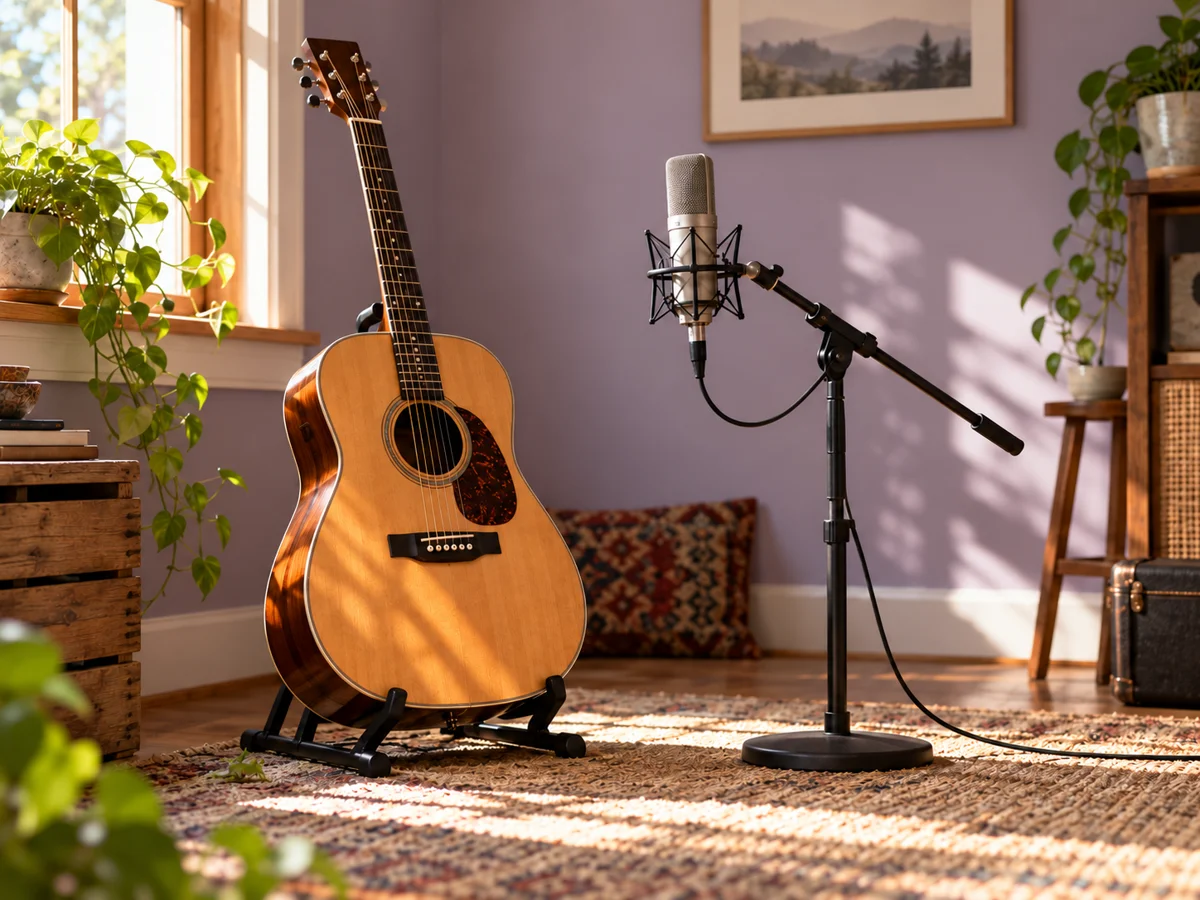

Acoustic guitar and a microphone ready for an instrument take

Record an idea while it is still fresh

When a musical phrase arrives away from your usual setup, use the microphone option to capture a take here. Find a quiet spot, keep a comfortable distance from the microphone, and leave a little space before starting. Listen once before submitting. For a melody made entirely by humming, the dedicated Hum to Song page offers the same recording workflow with guidance focused on that kind of input.

Make music from audio
Musician recording a musical idea into a handheld microphone

Explore a new arrangement from a demo

Use a demo you created as a reference for an alternative musical direction. Decide what you want to explore before writing: a lighter instrumental texture, a slower mood, or a different genre. Express that choice in ordinary language. The result is a newly generated interpretation, so compare the overall feeling and arrangement rather than expecting the original recording to remain untouched underneath added instruments.

Make music from audio
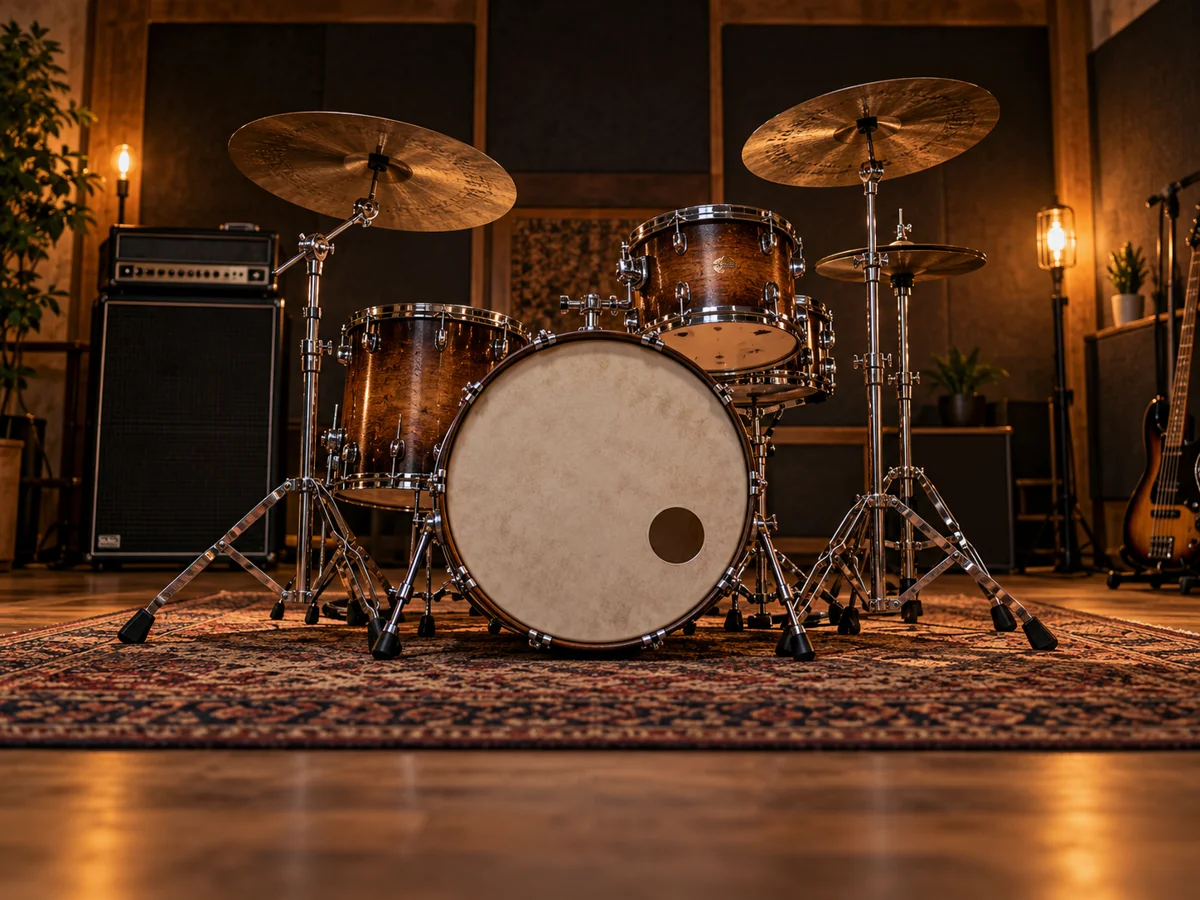
Drum kit in a rehearsal room prepared for a new arrangement

Compare ideas by listening with a purpose

Before generating a second version, write down one thing you want to change. Perhaps the first feels too busy for your sketch, or you want a more spacious sound. Update that part of the style description and listen again. Keep notes alongside downloaded versions so you can remember which direction each one explores. This makes the next creative decision more concrete than simply asking for a better song.

Make music from audio
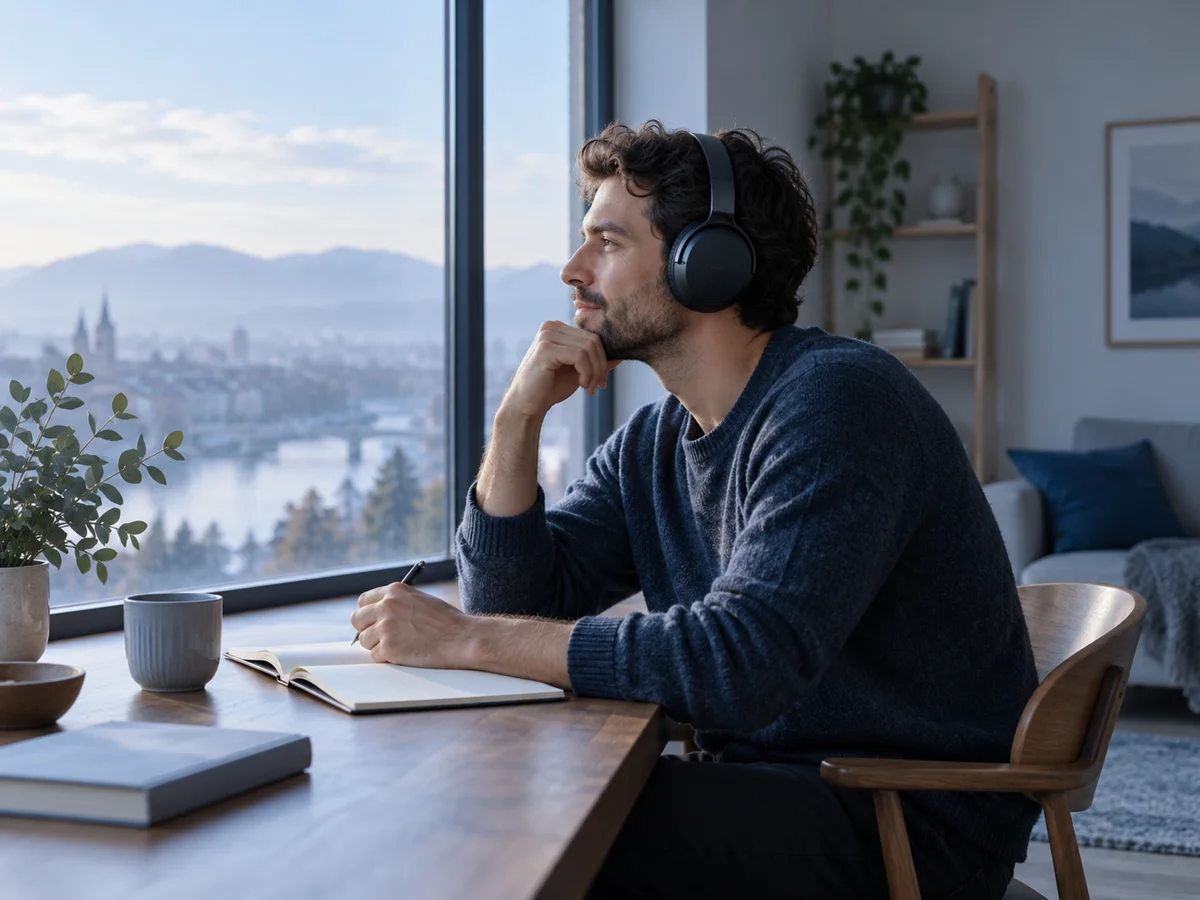
Listener comparing musical ideas with headphones and a notebook

Prepare an audio reference that is easy to work with

A few practical choices can make the upload and review process simpler. Check the source before you spend time shaping the style description.

Use a browser-readable recording

MP3 and WAV are good starting choices. The file picker also accepts M4A, OGG, WebM, and FLAC, but the browser must be able to decode the actual audio inside the file. A filename extension alone does not establish compatibility. If a file cannot be read, export another copy from your recording app and select it again.

Choose a focused passage

Uploaded audio must be between 6 and 360 seconds and no larger than 20 MB. Recording on this page stops at 60 seconds. Prepare a suitable excerpt in your own audio editor if your source is longer; there is no trimming timeline here. Let the selected passage communicate the idea without unrelated takes at either end.

Keep a clear musical reference

Start with a melody, an instrument performance, or a musical demo. Check for overpowering room noise, accidental handling sounds, and clipping before choosing the take. These are source-selection tips, not automatic repair controls. For a spoken note that describes a song rather than performs one, write the idea in the AI Music Generator instead.

Choose material you can use

Use your own recordings or material you have permission to submit. Keep a local copy of the source and consider whether it contains private conversations or someone else's performance. Generation uses uploaded audio as a reference; permission to upload and permission to publish a finished track are separate questions to resolve for your project.

Audio to Music questions

Find the right input and understand what this audio-based workflow gives you before submitting a recording.

No. It generates a new musical version using an audio reference and a style description. It does not provide a WAV-to-MP3 conversion download, transcription, sheet music, or a preserved original audio track. If your goal is only to change a file extension or codec, use a dedicated audio converter.

A voice memo containing a sung or played musical idea is a useful starting point if your browser can read it. This page is focused on musical references. It does not promise to turn ordinary speech, background noise, or every arbitrary sound into a song, or to preserve a speaker's voice.

Start your Audio to Music idea

Choose the recording that best captures your idea, give it a musical direction, and hear a new interpretation. Return to the tool to upload a file or record a take, then make your first style choice.