
Start with the image. Use the prompt to steer the soundtrack.
Most image to music prompts fail because they only say, "make music from this image." A picture can show mood, color, subject, lighting, and emotion, but it usually cannot tell an AI music tool whether you need a calm YouTube intro, a punchy product ad cue, a loopable game background, or a voiceover-safe music bed.
That is where the prompt helps.
Think of the image as the emotional anchor and the text prompt as the production note. The image says, "This is the feeling." The prompt says, "Turn that feeling into this kind of soundtrack."
With Image To Music AI, you can upload a picture, describe a scene, or combine both. For the best results, use the image to provide visual context, then use your prompt to steer genre, tempo, instrumentation, intensity, vocals, and use case.
Start with your image. Upload a photo, add a prompt, and generate a soundtrack direction.
What is an image-to-music prompt?
An image-to-music prompt is a short instruction written for a visual input. Instead of starting with only text, you start with a photo, video frame, product image, game scene, artwork, or moodboard. Then you add words that explain what kind of music should come from that visual.
A generic AI music prompt might say:
Create a cinematic ambient track.
That can work, but it leaves the tool to guess the emotional details.
An image-to-music prompt is more specific because it points back to the picture:
Use this rainy city street image as the mood anchor. Create a slow cinematic ambient soundtrack with soft piano, distant synth pads, gentle low percussion, and no vocals for a reflective travel vlog intro.
The difference is simple: a normal prompt describes music from scratch, while an image-to-music prompt translates a visual into music.
| Prompt type | Example | Why it works or fails |
|---|---|---|
| Too vague | "Make music from this image." | The image provides mood, but the prompt gives almost no musical direction. |
| Better | "Create a nostalgic folk track from this misty window photo." | Adds mood and genre, but still leaves use case and arrangement vague. |
| Strong | "Use the misty window image as the mood anchor. Create a slow, warm acoustic folk soundtrack with soft piano, brushed percussion, low intensity, and no vocals for a travel vlog intro." | Gives the tool a visual anchor, genre, tempo, instruments, intensity, vocal rule, and use case. |
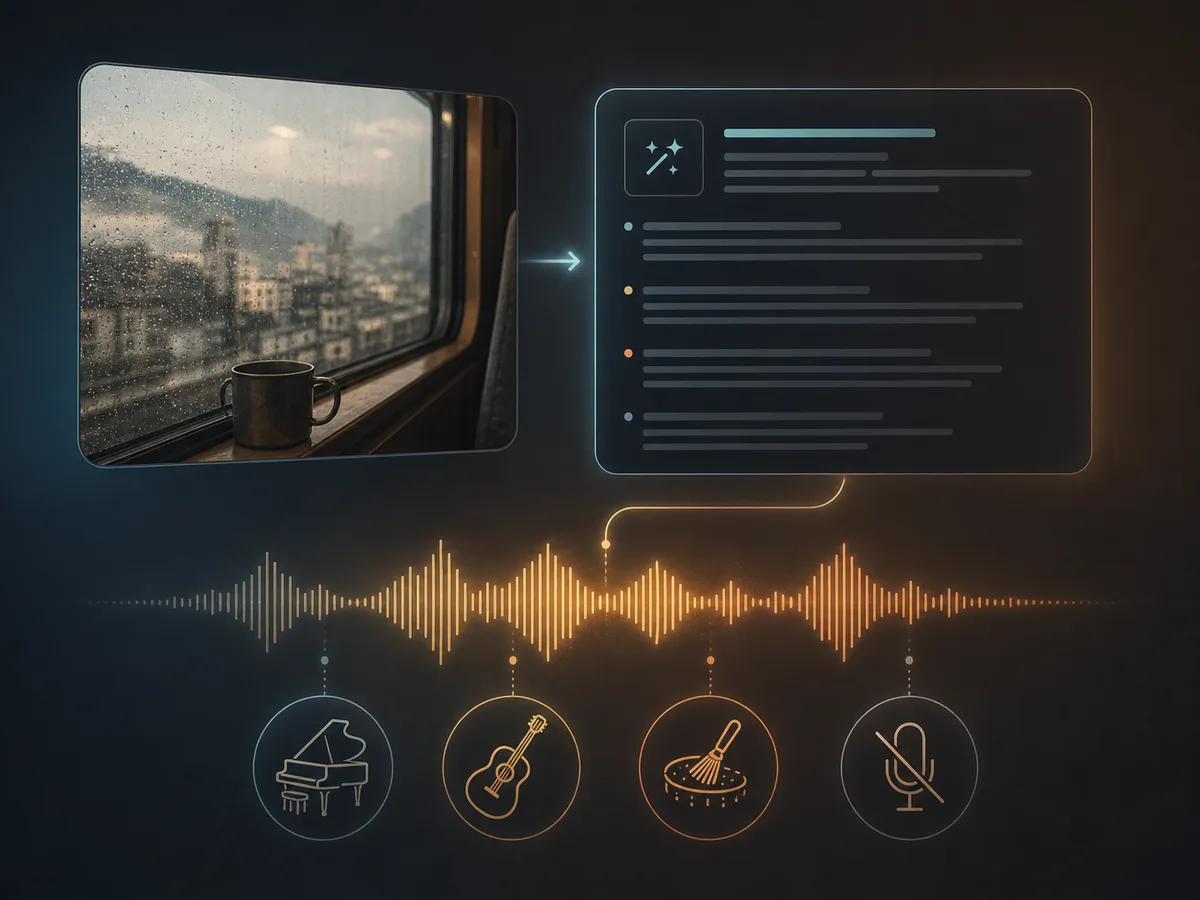
The goal is not to write a long paragraph every time. The goal is to remove the biggest guesses.
The simple formula for image to music prompts
Use this formula when you have a picture but do not know how to describe the music:
Use this image as the [mood / scene / color / emotion] anchor.
Create a [genre / style] soundtrack with [tempo / energy], [instruments / textures], and [vocal or instrumental direction].
It should fit [use case], feel [emotional adjectives], and avoid [constraints].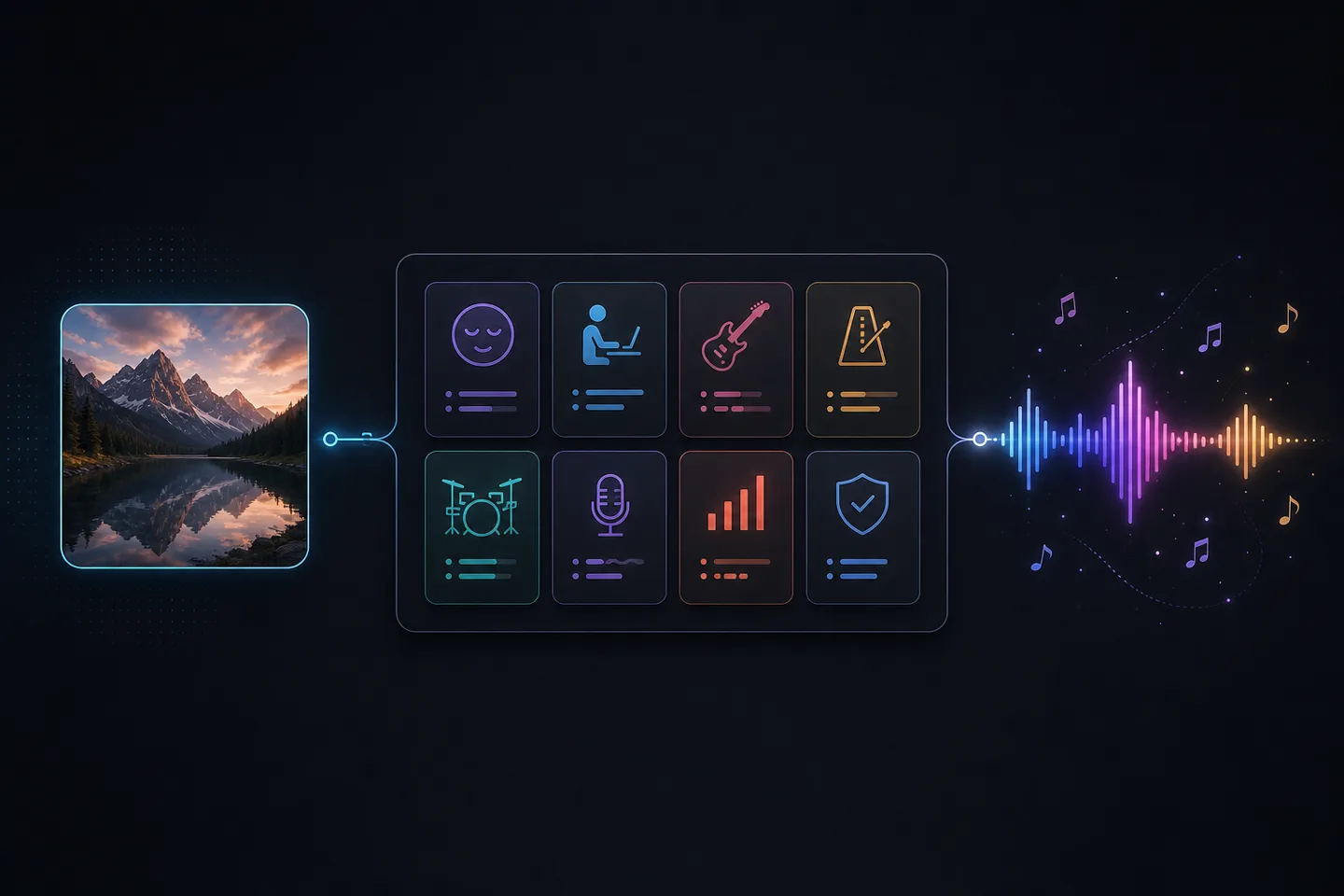
The image anchors the feeling. The prompt steers the soundtrack.
You do not need to fill every bracket every time. For a quick social post, genre, energy, instruments, and "no vocals" may be enough. For a product ad, game scene, or voiceover track, add more constraints so the music does not fight the edit.
Image anchors vs. prompt steering
| Input | What it handles | Example |
|---|---|---|
| Image | Mood, color palette, subject, setting, lighting, composition, emotion, and overall energy. | A misty road through a window can suggest nostalgia, softness, distance, and slower movement. |
| Text prompt | Genre, tempo, instruments, vocals, intensity, structure, use case, and constraints. | "Warm acoustic folk soundtrack, slow tempo, soft piano, brushed percussion, instrumental only, for a reflective travel intro." |
This is why the same image can become several different tracks. A sunset beach photo could become a calm acoustic vlog bed, a dreamy ambient gallery loop, a tropical pop short-form cue, or a cinematic outro. The picture gives the emotional starting point; your prompt chooses the direction.
Prompt component checklist
| Component | What to write | Example options |
|---|---|---|
| Visual anchor | Name the image subject, setting, color, or mood you want the music to read. | rainy city street, warm sunset beach, minimal product photo, neon game alley |
| Use case | Say where the music will be used. | YouTube intro, product ad, loopable game scene, voiceover background, short-form teaser |
| Genre / style | Give the broad sonic direction. | cinematic ambient, lo-fi hip hop, 8-bit chiptune, neo soul, orchestral trailer cue |
| Tempo / energy | Describe speed and motion in plain words. | slow, mid-tempo, driving, high-energy, calm pulse, gentle build |
| Instruments / textures | Name the sounds you want to hear. | soft piano, warm synth pads, plucked strings, deep bass, brushed drums, airy choir texture |
| Vocals | Decide whether voices should appear. | instrumental only, no vocals, soft vocal texture, choir-like background vocals |
| Intensity | Control how big or subtle the track should feel. | minimal, low intensity, cinematic but not dramatic, bold drop, gradual crescendo |
| Constraints | Say what the music should avoid. | do not overpower narration, no vocals, avoid copyrighted artist references, no sudden loud hits |
A strong prompt usually includes at least four of these: visual anchor, use case, genre/style, tempo/energy, instruments/textures, vocal direction, intensity, and constraints.
Example: from vague to usable
Suppose your image is a clean product photo: a black wireless speaker on a dark background with blue rim lighting.
Weak prompt:
Make music from this product image.
Stronger prompt:
Use this dark product photo with blue rim lighting as the visual anchor. Create a sleek mid-tempo electronic soundtrack with deep bass, crisp percussion, subtle synth pulses, and no vocals. It should fit a 20-second product ad, feel premium and modern, and avoid dramatic trailer hits.
That prompt gives the AI a clearer job. The image carries the color, lighting, and premium mood. The prompt adds the use case, genre, tempo, instruments, vocal rule, intensity, and what to avoid.
Have a visual ready? Use the formula with your own photo or scene.
32 image-to-music prompt examples by creator workflow
The examples below are templates. They are not verified generated outputs, and they should not be treated as claims about specific audio samples. Copy one, swap in your image type, and adjust the use case.
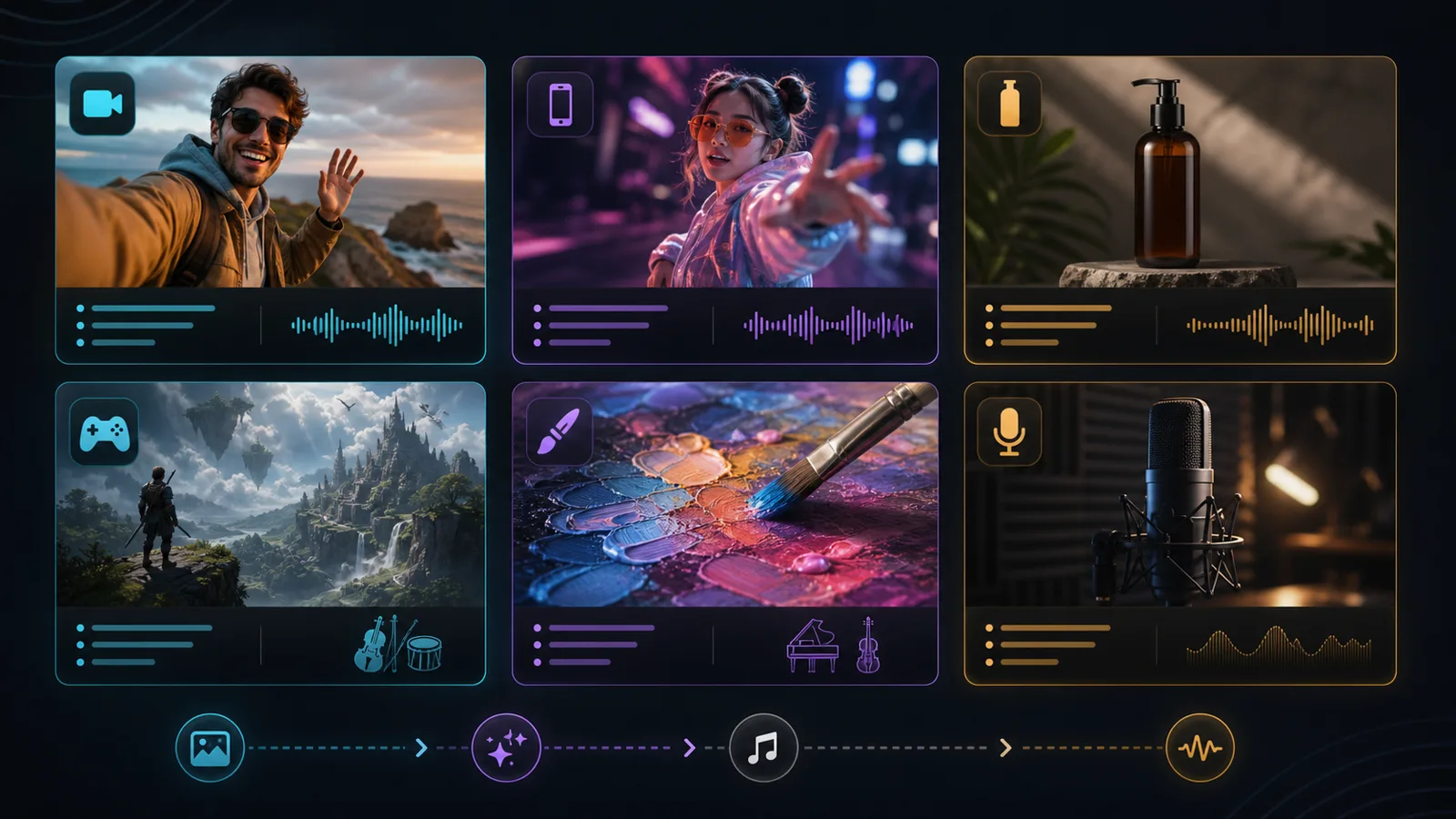
Different visuals need different soundtrack jobs.
YouTube and vlog prompts
| Use case | Visual input | Copy-ready prompt |
|---|---|---|
| Travel intro | Misty road, train window, quiet landscape | Use this misty travel image as the emotional anchor. Create a slow cinematic folk soundtrack with soft piano, gentle acoustic guitar, light brushed percussion, and no vocals for a reflective YouTube travel intro. |
| Daily vlog montage | Bright street, cafe, lifestyle frame | Use this bright lifestyle image as the mood anchor. Create a relaxed mid-tempo indie pop instrumental with warm guitar, light drums, soft bass, and subtle handclaps. Keep it friendly and not too busy for quick vlog cuts. |
| Tech review background | Desk setup, device close-up | Use this clean tech image as the visual anchor. Create a minimal electronic background track with precise percussion, smooth synth pulses, low intensity, and no vocals for a product review voiceover. |
| Outro/end screen | Sunset city view, final room frame | Use this warm end-screen image as the mood anchor. Create a hopeful instrumental outro with soft piano, muted drums, gentle synth pads, and a small final lift. Avoid sudden loud hits. |
TikTok, Shorts, and Reels prompts
| Use case | Visual input | Copy-ready prompt |
|---|---|---|
| Product teaser | Product flat lay, launch image | Use this bright product image as the visual anchor. Create a punchy 15-second electropop instrumental with crisp drums, playful synth hooks, tight bass, and high energy. No vocals and no brand-name references. |
| Fashion Reel | Street portrait, outfit photo | Use this stylish portrait image as the mood anchor. Create a confident mid-tempo fashion Reel soundtrack with sleek bass, crisp claps, airy synth textures, and a clean transition-friendly beat. |
| Food short | Restaurant dish, cooking still | Use this warm food image as the visual anchor. Create a playful, cozy instrumental with light percussion, plucked strings, soft bass, and a friendly groove for a short cooking video. |
| Fitness clip | Gym photo, workout product, motion frame | Use this high-energy workout image as the anchor. Create a driving electronic beat with strong drums, pulsing bass, and a motivating build. Keep it instrumental and social-video ready. |
Product ad and marketing prompts
| Use case | Visual input | Copy-ready prompt |
|---|---|---|
| Premium product ad | Dark product hero image | Use this premium product photo as the visual anchor. Create a sleek electronic soundtrack with deep bass, crisp percussion, restrained synth pulses, and no vocals for a 20-second product ad. |
| Playful launch video | Colorful product packaging | Use this colorful launch image as the mood anchor. Create a bright, upbeat pop instrumental with playful synth hooks, claps, and light drums. Make it energetic but not childish. |
| Minimal SaaS demo | App screenshot, dashboard, laptop scene | Use this clean software image as the visual anchor. Create a minimal corporate-electronic bed with soft pulses, warm pads, and low intensity. It should support narration without distracting. |
| Brand hero loop | Website hero image or campaign visual | Use this brand hero image as the anchor. Create a polished loopable instrumental with modern percussion, warm synths, and a confident but subtle build for a landing-page video. |
Indie game scene prompts
| Use case | Visual input | Copy-ready prompt |
|---|---|---|
| Exploration loop | Forest, cave, open world scene | Use this environment image as the mood anchor. Create a loopable ambient exploration track with soft pads, distant textures, light percussion, and no vocals. Keep the intensity low and seamless. |
| Retro arcade | Pixel art, arcade cabinet, neon UI | Use this retro pixel image as the visual anchor. Create a 30-second chiptune loop with bright 8-bit melody, bouncy bass, and playful drums for a menu or level select screen. |
| Horror hallway | Dark corridor, abandoned room | Use this dark hallway image as the anchor. Create a tense, minimal horror ambience with low drones, sparse metallic hits, and slow-building suspense. Avoid jump-scare stabs. |
| Boss reveal | Monster art, battle arena, dramatic pose | Use this boss scene image as the anchor. Create a dramatic orchestral-electronic cue with heavy percussion, low brass, aggressive strings, and a controlled build. No vocals. |
Visual art, photography, and moodboard prompts
| Use case | Visual input | Copy-ready prompt |
|---|---|---|
| Gallery loop | Abstract painting, installation, digital art | Use this abstract artwork as the mood anchor. Create a slow ambient instrumental with evolving synth textures, soft low-end movement, and a spacious atmosphere for a gallery loop. |
| Portrait score | Soft portrait, character study | Use this portrait image as the emotional anchor. Create an intimate piano-and-strings instrumental with low intensity, gentle dynamics, and no vocals. Make it reflective, not dramatic. |
| Travel slideshow | Beach, mountain, city photo set | Use this travel photo as the visual anchor. Create a warm cinematic acoustic soundtrack with gentle guitar, soft percussion, and a gradual lift for a photo slideshow. |
| Dark editorial image | Moody fashion, shadowed architecture | Use this dark editorial image as the mood anchor. Create a minimal trip-hop inspired instrumental with dusty drums, deep bass, and atmospheric pads. Keep it stylish and restrained. |
Podcast, explainer, and voiceover prompts
| Use case | Visual input | Copy-ready prompt |
|---|---|---|
| Podcast intro | Cover art, show image | Use this podcast cover image as the visual anchor. Create a short instrumental intro with warm keys, subtle percussion, and a memorable but simple motif. Keep it voiceover-safe. |
| Explainer background | Slide, diagram, product UI | Use this clean explainer image as the anchor. Create a low-intensity background track with soft synth pulses, gentle marimba, and no vocals. Do not overpower narration. |
| Documentary bed | Interview still, archival image | Use this documentary frame as the emotional anchor. Create a restrained cinematic bed with soft piano, muted strings, and subtle ambient texture. Keep it serious and understated. |
| Tutorial music | Screen recording still, workspace photo | Use this tutorial image as the visual anchor. Create a calm, focused instrumental with light percussion, soft keys, and low energy for step-by-step narration. |
Cinematic, trailer, and suspense prompts
| Use case | Visual input | Copy-ready prompt |
|---|---|---|
| Cinematic opener | Epic landscape, dramatic architecture | Use this cinematic image as the anchor. Create a sweeping orchestral intro with warm strings, low brass, soft percussion, and a gradual build. Keep it emotional, not overly intense. |
| Suspense teaser | Empty street, shadowy room | Use this suspenseful image as the mood anchor. Create a tense atmospheric cue with low drones, pulsing bass, sparse percussion, and no vocals for a short teaser. |
| Romantic scene | Pastel portrait, soft hands, warm light | Use this romantic image as the emotional anchor. Create a tender R&B-inspired instrumental with soft keys, warm bass, delicate percussion, and gentle dynamics. |
| Comedy or playful moment | Toy, party scene, funny visual | Use this playful image as the anchor. Create a quirky upbeat instrumental with light plucks, bouncy rhythm, and cheerful percussion. Keep it fun without sounding childish. |
How to use these prompts in Image To Music AI
Image To Music AI is built around a visual-first workflow: upload a picture, describe a scene, or combine both. The prompt examples above are designed for the combined workflow, where the image provides the mood and the text prompt steers the soundtrack.
1. Upload a reference image
Use a clear image that represents the final mood: a product photo, a video still, a thumbnail frame, a game scene, a portrait, a travel shot, or a moodboard. Image To Music AI lists JPG, PNG, and WebP as supported reference image formats.
2. Add a prompt that explains the music's job
Paste one of the examples above and change the details. The most useful edits are use case, genre, tempo, instruments, vocals, intensity, and constraints.
3. Generate a first version
Treat the first result as a draft, not the final answer. Listen for fit: does the music match the image, support the edit, avoid unwanted vocals, and leave room for narration or product messaging?
4. Refine one control at a time
Change only one or two details in the next prompt. For example, lower intensity, remove vocals, make it more loopable, ask for warmer instruments, or specify a slower tempo.
5. Preview, compare, and download
When the track fits your visual and use case, preview the final version and download it according to your current plan and project needs.
Try the workflow with one image. Upload, prompt, preview, refine, and keep the version that fits.
Troubleshooting: how to fix weak image-to-music prompts
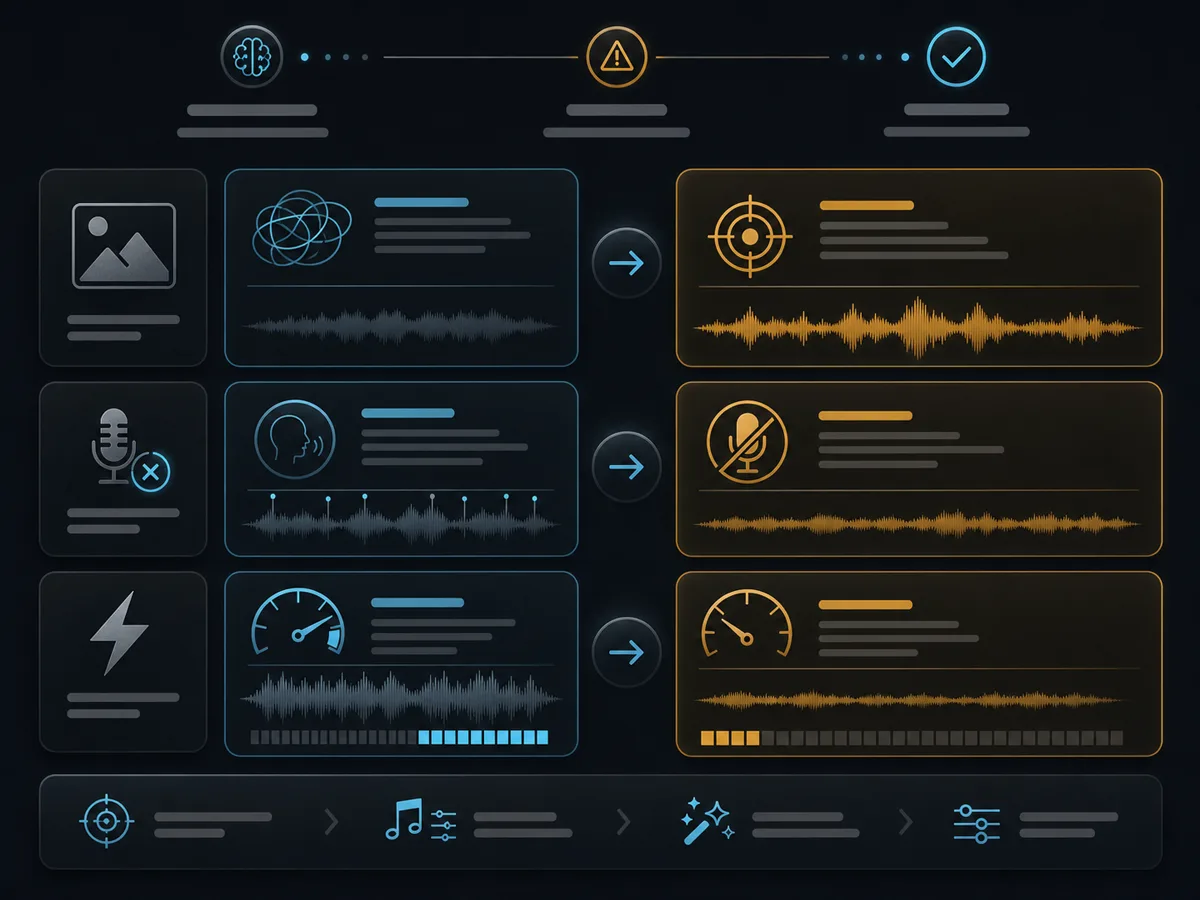
Change one control at a time, then compare the next version.
If the result is close but not right, do not rewrite the whole prompt. Change one control at a time.
| Problem | Likely cause | Prompt fix |
|---|---|---|
| Output feels generic | Prompt lacks use case or sonic details | Add genre, instruments, tempo, and purpose. |
| Music ignores the image mood | Prompt does not name the visual feature that matters | Add "focus on the warm sunset light" or "follow the empty hallway tension." |
| Track is too dramatic | Intensity is too high | Add "low intensity," "restrained," or "cinematic but not dramatic." |
| Track is too calm | Energy is underspecified | Add "driving rhythm," "stronger pulse," or "gradual build." |
| Unwanted vocals | Vocal direction is missing | Add "instrumental only, no vocals, no lyrics." |
| Fights narration | Too busy or vocal-heavy | Add "voiceover-safe, low intensity, no vocals, no sudden hits." |
| Does not loop | Loop behavior is missing | Add "loopable background track with a seamless ending." |
| Sounds too close to a protected work | Prompt names specific songs, artists, lyrics, or brands | Describe musical traits instead of protected references. |
Best image inputs for image-to-music prompts
A better image gives the prompt a stronger starting point. You do not need a professional photo, but the visual should communicate a clear subject, mood, and use case.
| Image type | Why it works | Prompt detail to add |
|---|---|---|
| Travel photo with clear atmosphere | Landscapes, streets, and window views often carry mood, scale, and pace. | Add whether it is for an intro, montage, recap, or ending. |
| Product hero image | Lighting, color, background, and composition can suggest brand tone. | Add premium, playful, minimal, energetic, or another brand-feeling word. |
| Video still or thumbnail frame | It represents the actual edit better than a random image. | Add the platform and format: YouTube intro, Reel, ad, tutorial, or voiceover. |
| Game scene or concept art | Art direction can suggest genre, tension, world, and loop behavior. | Add loopable, intensity level, and whether it is menu, exploration, battle, or cutscene music. |
| Portrait or character image | Expression, pose, lighting, and background suggest emotion. | Add whether the music should feel intimate, heroic, tense, funny, or reflective. |
| Moodboard or abstract art | Color, shapes, and texture can guide atmosphere. | Add use case and sonic texture because abstract visuals can be interpreted many ways. |
Use the frame that represents the final use. For a YouTube intro, use a strong opening frame or thumbnail. For a product ad, use the hero product image. For a game scene, use the environment or menu screen where the loop will play. For a voiceover video, choose a calm frame and ask for low intensity.
Safety, rights, and commercial-use notes
This section is practical guidance, not legal advice. For any client, paid, public, or commercial project, check the current Image To Music AI pricing, Terms of Service, and Acceptable Use Policy before publishing or distributing the final track.
Use images and prompts you have the right to use. Safer inputs include your own photos, client-approved product images, licensed stock images, original artwork, approved internal moodboards, and public-domain or properly licensed visuals.
Avoid prompts that ask for a track to copy a specific song, living artist, protected lyrics, brand jingle, celebrity identity, album artwork, logo, or character. A safer prompt describes musical traits instead:
| Avoid | Safer direction |
|---|---|
| "Make this sound like [specific living artist]." | "Create a dreamy synth-pop instrumental with soft pads, crisp drums, and a gentle 100 BPM pulse." |
| "Copy the song from this movie trailer." | "Create a suspenseful cinematic build with low strings, pulsing percussion, and a restrained final lift." |
| "Use this brand's jingle style." | "Create a short, bright, memorable product cue with clean percussion, warm synths, and no vocals." |
| "Use lyrics from a copyrighted song." | "Write original lyrics about the same broad theme, or use instrumental-only music." |
Commercial use has two layers:
- Output rights under your Image To Music AI plan. Check whether your current plan allows your intended project type.
- Input rights for the materials you supplied. A commercial-use output license does not automatically give you rights to third-party images, prompts, lyrics, logos, people, brands, or other references you did not have permission to use.
Do not write "free commercial music," "royalty-free for all uses," or "guaranteed copyright-safe" unless the current plan, Terms, and asset rights clearly support that claim.
FAQ: image to music prompts
What are image to music prompts?
Image to music prompts are short instructions that tell an AI music tool how to turn a visual input into a soundtrack. The image provides mood, colors, subject, setting, lighting, and emotion. The prompt adds genre, tempo, instruments, intensity, vocals, structure, constraints, and use case.
How do I write a good image-to-music AI prompt?
Start with what the image shows, then add what the track needs to do. A simple structure is: use this image as the visual anchor; create a genre/style soundtrack with tempo/energy, instruments/textures, and vocal direction; make it fit a specific use case and avoid specific constraints.
Can AI generate music from an image without a text prompt?
Yes, some image-to-music workflows can start from only a picture. But adding a prompt usually gives more control over genre, tempo, instruments, vocals, intensity, and final use case.
Should I describe the image or the music?
Do both, but do not repeat what the image already makes obvious. Use the image to anchor the scene and mood, then use the prompt to steer the soundtrack.
How do I stop the AI from adding vocals?
Write it directly in the prompt. Use phrases such as "instrumental only," "no vocals," "no lyrics," "voiceover-safe background music," or "do not include sung vocals or spoken words."
What image formats can I use with Image To Music AI?
Image To Music AI lists JPG, PNG, and WebP as supported reference image formats. Choose a clear image with a strong subject, readable mood, and useful lighting.
Can I use AI-generated music commercially?
Commercial use depends on the current Image To Music AI plan, Terms of Service, and the rights in the materials you provide. Check the current pricing, Terms of Service, and Acceptable Use Policy before using generated music in a client, monetized, brand, game, or public commercial project.
Do these prompt examples guarantee a specific result?
No. The prompts are starting points, not guaranteed outputs. AI music generation can vary, so listen, change one control, regenerate, and compare versions.
Conclusion: start with the image, then steer the soundtrack
The best image to music prompts do not try to describe every musical detail from scratch. They use the picture as the emotional starting point, then add enough text direction to make the soundtrack useful.
A strong workflow looks like this:
- Choose an image with a clear subject, mood, and use case.
- Decide what the music needs to do for the edit, ad, game scene, or artwork.
- Add genre, tempo, instruments, vocals, intensity, and constraints.
- Generate a first version.
- Listen, change one control, and compare the next take.
You do not need to know every music term before you begin. You can start with the visual you already have, then use the prompt to explain how that visual should sound.
Ready to turn a photo into music? Start from the image, then steer the soundtrack with a prompt.